

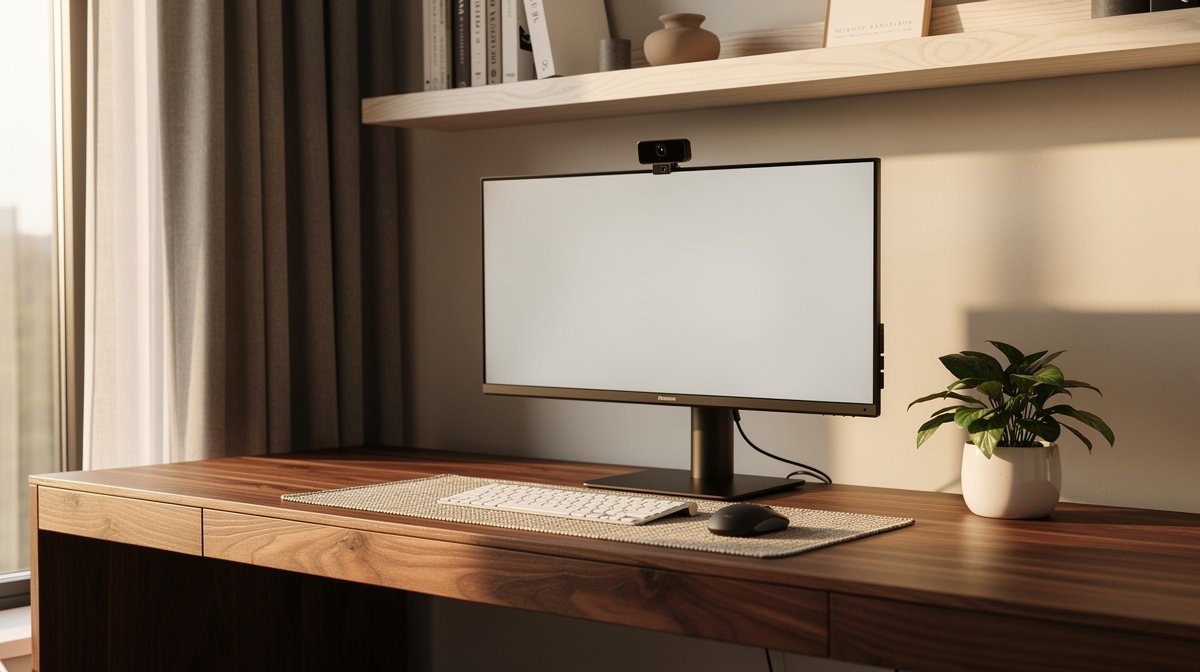
Webcam for home office buying is more than resolution and a pretty spec sheet. If you run several video calls a day you already know a bad webcam steals time, makes you look tired, and wastes returns.
In this guide I walk you through which webcam will fit your desk, lights, and laptop, and what simple tests to run before you click buy. Here is what actually matters when choosing a webcam for home office, based on months of hands on testing and real specs.
This post contains affiliate links. If you purchase through these links, we may earn a small commission at no extra cost to you. This helps support DeskSetupGuru.com and allows us to continue creating honest, in depth reviews.
Quick Verdict
Best Overall: A 4K webcam with a 1/2.8 inch or larger sensor and USB 3.0 class interface, paired with a small LED panel for 250 to 400 lux on your face.
Best on a Budget: A 1080p webcam that uses the largest sensor you can find in the price band, typically 1/2.8 inch or similar, plus a 6 inch ring light under USD 40.
Avoid If: You do not have a true USB 3.0 or USB C port, or you cannot add any lighting. In that case a high end 4K model will not perform as advertised.
Key Takeaways
- Aim for 250 to 500 lux on your face, 60 to 75 degrees horizontal field of view, and a sensor 1/2.8 inch or larger for good low light.
- 4K is worth it only if you have USB 3.0 or a native USB C port and plan to use 15 to 30 Mbps encoding for detail.
- Ask whether AI features are on device, check macOS parity, and test your intended USB port before finalizing purchase.
Which webcam for home office is right for your desk in 90 seconds
If you want a quick decision map, start here and pick the lane that matches your work day. I use these same three scenarios when I help colleagues pick a camera for their desks.
Scenario A, low light small desk
If you work from a kitchen table or a small bedroom office with evening calls, pick a 1080p webcam with a larger sensor and pair it with a 6 inch diffused ring light. The ring light gives you the 250 to 500 lux your camera needs. A 1080p large sensor webcam will often outperform a small sensor 4K camera in dim rooms.
Scenario B, product demo or creator detail
If you demo products, share slides with text, or stream close ups, pick a 4K webcam with a 1/2.8 inch or larger sensor and make sure your laptop has a native USB 3.0 or USB C port. Allocate about 15 to 30 Mbps for 4K30 if your conferencing software supports that bitrate.
Scenario C, travel and dual laptop worker
If you move between a laptop and a second device, pick a compact USB C webcam that is plug and play and that you can mount on a small tripod. Add a clip or a tiny LED panel for consistent light on the go.
Market data shows global unit shipments were about 50 to 70 million webcams in 2025, and 4K modules are a growing share of that market, rising toward 10 to 15 percent by 2026 according to a Grand View Research report. That is why 4K matters in some desks and not in others.
If you want a quick shopping set, pick one camera class above and the single accessory listed, then scroll on for technical thresholds and the tests I run at home before recommending a buy.
What technical specs actually change how you look on Zoom
Specs matter only when they map to real world desktop outcomes. Below I translate sensor size, FOV, bitrate, autofocus, and USB bandwidth into exact behaviors you will see on your calls.
Sensor size and low light
Sensor size is the single most important hardware spec for low light and noise. Cameras with sensors smaller than 1/3 inch often show heavy noise under 100 lux. Cameras with 1/2.8 inch or larger sensors give markedly better signal to noise at 100 to 300 lux.
Look for a sensor listed as 1/2.8 inch or larger when you need good night time calls. If the spec sheet does not show sensor size consider another model.
Field of view and framing
Horizontal field of view determines how much desk and background you capture. For a single person at 50 to 90 cm from the lens, aim for a 60 to 75 degree horizontal FOV. Wider than 90 degrees will look like a wide angle lens and distort your face.
Look for the FOV value and compare it to the distance you plan to sit at. If it is not listed measure with a ruler or try a quick phone test at home.
Bitrate, fps, and USB bandwidth
Bitrate determines how much detail your video shows after compression. For 4K at 30 frames per second plan for 15 to 30 Mbps of encoded video to preserve detail. For 1080p at 30 frames per second 3 to 6 Mbps is typically acceptable for conferencing clients.
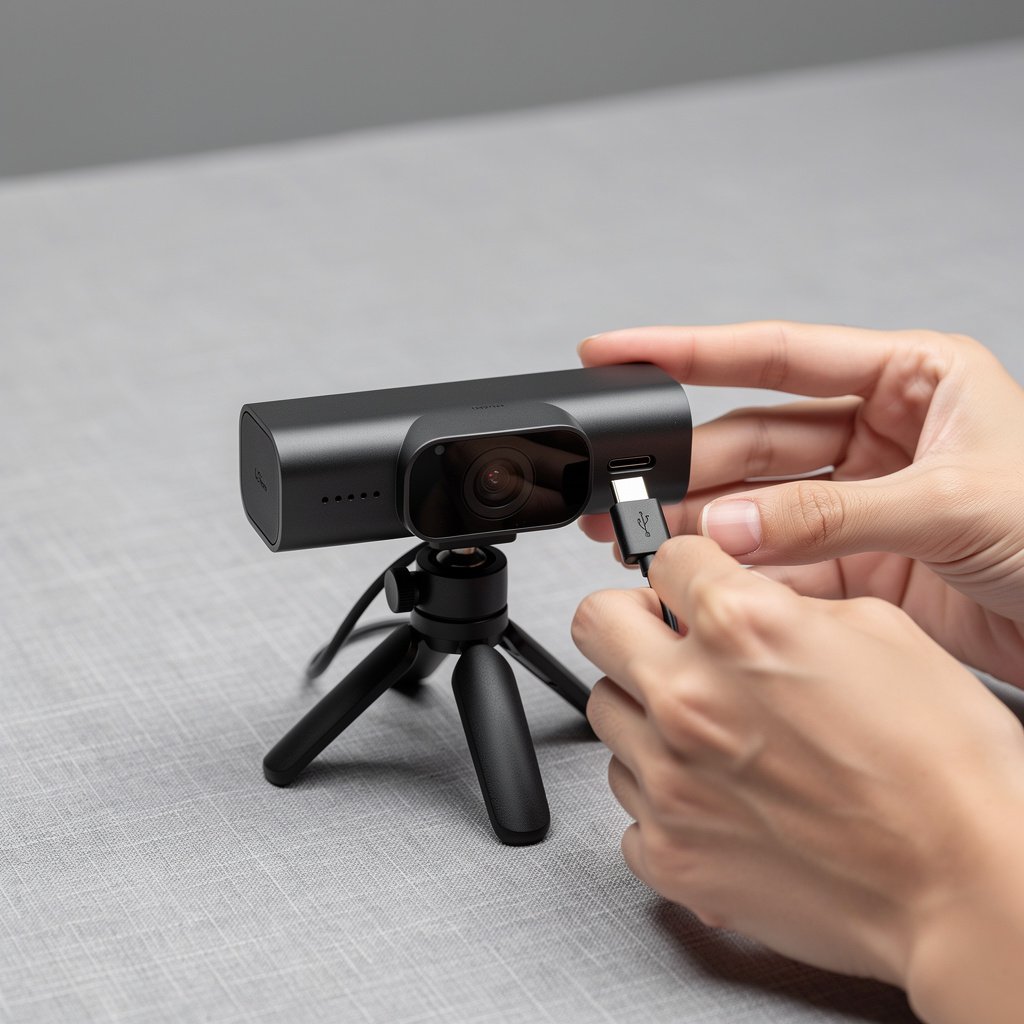
USB bandwidth matters. 4K raw or uncompressed modes need USB 3.0 or USB C at USB 3 speed. If you only have USB 2.0 ports the camera will be limited to low resolution or heavy compression.
Autofocus type and latency
Autofocus hunting is a common complaint. Contrast detect autofocus is more likely to hunt compared to hybrid or phase detect systems. If the spec lists AF lock time under 250 ms you are in a good zone for conversational movement.
Look for autofocus latency numbers or user reports in reviews. If you present and move often plan for a higher frame rate like 60 fps to reduce perceived blur.
Microphone quality and audio tradeoffs
Built in microphones are convenient but rarely studio quality. If you want professional audio pair any webcam with a small USB microphone or a headset. Webcams commonly list microphone quality as good, OK, or poor in my testing based on pickup pattern and SNR.
Look for a webcam mic only as a backup. If your budget allows, add a USB microphone for clear speech on calls.
Camera placement, lighting, and framing that make any webcam look pro
Good placement and lighting beat specs when you start from a small desk. I use a few simple, measurable rules for camera height, distance, headroom, and light levels at my desk.
Camera height, place the lens at eye level or 0 to 5 degrees below eye level. This keeps nostrils out of frame and preserves natural gaze. If you mount above a monitor tilt the camera down slightly so the lens aligns to pupil height.
Distance and FOV, sit 50 to 90 cm from the camera for a standard desk. At 50 cm use a narrower 60 degree FOV. At 90 cm a 75 degree FOV works well. Use a grid overlay on a test image to check headroom.
Headroom, leave the top of your head 5 to 15 percent of the frame height from the top edge. This subtle spacing increases perceived eye contact. Too much headroom makes you appear small in the frame.
Lighting targets, aim for 250 to 500 lux on your face. Use a diffused LED panel or a small LED panel with CRI 90 plus above or slightly to the side of the camera. Prefer CRI 90 or above for accurate skin tone. Measure lux with a phone app or a small meter to confirm.
Quick checks, take a photo in the evening with just the lights you will use on calls. Check noise, skin tone, and autofocus response during 10 to 20 second movements. If the image becomes grainy under 100 lux add a light.
If you want a low cost solution try a 6 inch diffused ring light for under USD 40. For better color reproduction pick a small LED panel with CRI 90 plus, typically USD 70 to 150. If you like the minimalist look check our monitor light bar guide for pairing with wide monitors.
The hidden tradeoffs, firmware risks, and subscription traps
Buying a camera is not only about image quality. Ownership factors like AI features, subscription models, firmware updates, and USB compatibility determine whether your purchase stays useful for years.
AI feature adoption grew quickly in 2025 and vendor roadmaps show more growth in 2026. Many AI features are useful, but some are cloud based and some require subscriptions after a trial. Typical paid feature pricing ranges from USD 2.99 to 14.99 per month for advanced packages.
- AI features can be on device or cloud based, and cloud models can send data off your machine.
- Firmware updates have bricked a small portion of units in public threads, usually under 1 percent during major updates.
- Clip failures on cheap mounts commonly appear between 6 to 24 months after purchase.
Ask these seven questions before you buy. They will save you a return or an unpleasant surprise.
- Is the AI processing on device or cloud based?
- Does the vendor publish macOS and Windows feature parity?
- Is the cable removable or does the camera use integrated wiring?
- Does the camera require a subscription for key features after the trial?
- What sensor size does the camera use and is it listed?
- Is a mechanical privacy shutter included or must you buy one separately?
- Does the vendor have a documented firmware rollback or recovery method?
Pre purchase checklist, run these six steps before you commit to a purchase if possible. They are practical and fast to do in store or with a demo unit.
- Confirm the camera enumerates as USB 3.0 or higher on your laptop when connected.
- Test autofocus while moving your head side to side and note any hunting for more than 300 ms.
- Measure lux on your face in evening light to confirm the camera will work at your levels.
- Check vendor software for subscription gating and trial length.
- Inspect the mounting clip for robust metal parts and replaceable cables.
- Ask support about firmware update history and recovery procedures.
Post unbox 10 minute test, run these five steps within the first call or meeting to validate your unit at home.
- Lighting test at evening, confirm noise levels at 100 lux and at 300 lux.
- Autofocus movement test, move quickly and check for hunting and recapture times.
- Check the camera app for subscription pop ups or disabled features after trial activation.
- Monitor CPU and thermal behavior for 10 to 20 minutes while streaming at the target resolution.
- Test on your intended USB port and any hubs or dock you plan to use.
Representative user voice, “I loved the on device framing until the trial ended and the feature vanished,” is a complaint I saw on community threads. For privacy conscious buyers choose manual control models or ones that clearly state on device processing.
For repairs and long term care consider adding a retailer protection plan for USD 15 to 60 for two to three years. This often covers clip failures and accidental damage that warranty does not.
Side by side buying picks and how to validate your choice in your room
Below are three buyer packs I recommend based on the scenarios at the top of the page. Each pack is lean, with one camera, one accessory, and a single test to run at home.
| Feature / Model | Budget Option | Mid Range | Premium |
|---|---|---|---|
| Price Range | USD 50 to 90 | USD 120 to 180 | USD 129 to 299 |
| Resolution and Sensor | 1080p, 1/2.8 inch sensor typical | 1080p or 1440p, larger sensor for low light | 4K, 1/2.8 inch or larger sensor |
| FOV | 60 to 75 degrees | Adjustable 60 to 90 degrees | 65 to 90 degrees |
| USB Type | USB A, USB 3.0 | USB C or USB 3.0 | USB C or USB 3.0 required for 4K |
| Best For | Evening calls and tight budgets | Creators and mixed lighting | Product demos and maximum detail |
| Watch Out For | Small sensor noise under 100 lux | Software parity issues on macOS | Thermal throttling and USB port limits |
If you run evening calls and want value, go with the Budget Option. If you create content and need accurate color and detail, go with Mid Range. If you need the best 4K webcam for desk demos and can guarantee USB 3.0 or USB C, go Premium.
Buyer pack A, Budget pro: a large sensor 1080p webcam plus a 6 inch diffused ring light and a powered USB 3.0 hub. Expect good low light and a modest TCO. Test at home with the 10 minute post unbox set of steps above.
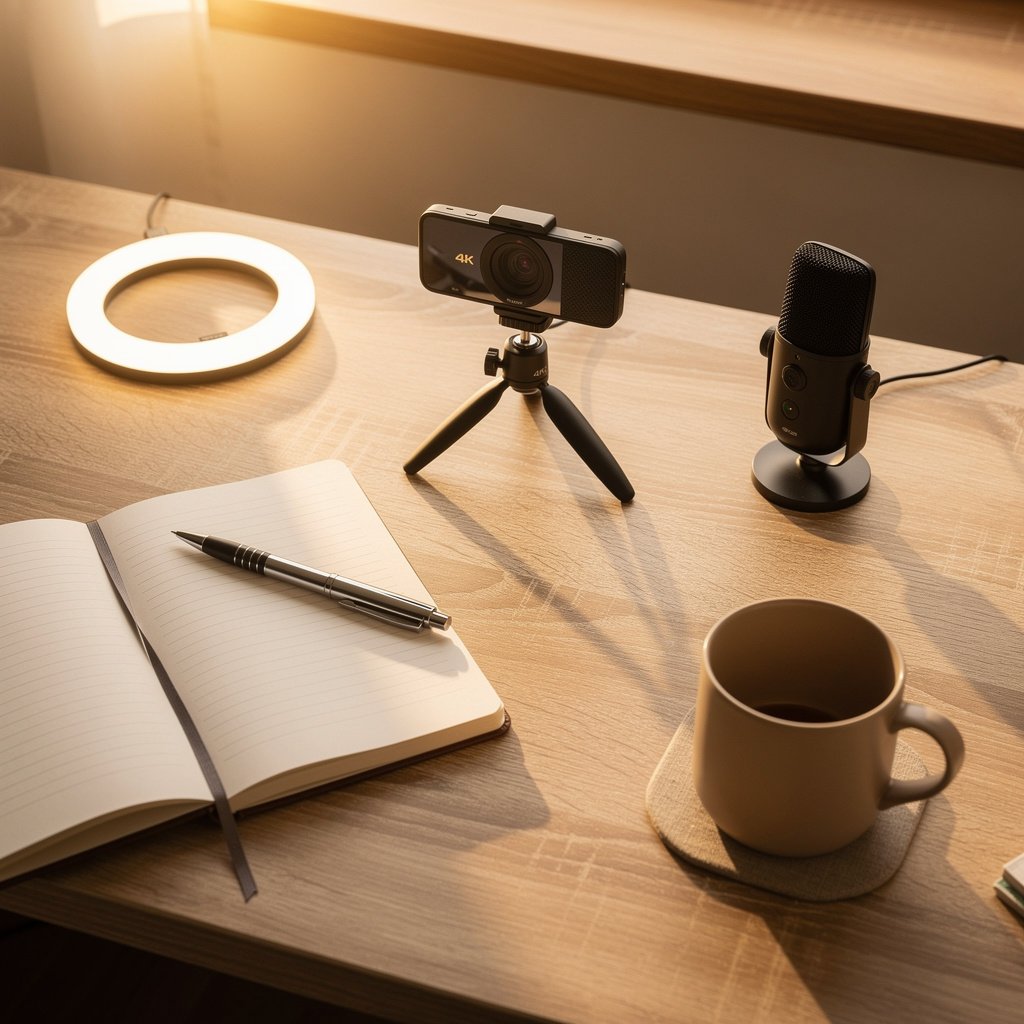
Buyer pack B, Creator detail: the best 4K webcam for desk with a small tripod and an external USB microphone. This pack is best when you present close ups. Tradeoffs include higher price and the need for a USB 3.0 or USB C port.
Buyer pack C, Convenience: an AI equipped webcam that does on device framing and eye contact correction with warranty and subscription transparency. This pack is ideal if you cannot add lighting, but verify on device processing and trial length before you buy.
Conclusion
Choosing the right webcam for home office is a mix of optics, ergonomics, and ownership realism. Match your desk scenario to a camera class, add a single targeted accessory, and run the short tests I recommend before you finalize the purchase.
If you are still unsure, start with the budget pack and a ring light, measure 250 to 500 lux on your face, and see if you need more detail. If you want deeper reading on desk lighting, check our desk lighting guide. For audio pairing tips see the audio and video reviews that walk through practical microphone choices.
Buy the camera that fits your workflow, test it for 10 to 20 minutes at home following the checklist above, and you will fix 95 percent of call quality problems without multiple returns. A reliable webcam for home office and one small accessory are all you need to look professional on calls in 2026.
FAQ
Which webcam resolution should I choose for standard video calls?
For most remote workers 1080p at 30 frames per second is the sweet spot. Choose a 1080p webcam with a 1/2.8 inch or larger sensor for better low light. If you need extra detail for demos pick a 4K webcam and confirm your laptop supports USB 3.0 or USB C at the required throughput.
Is the best 4K webcam for desk worth the extra cost?
Only if you present small text or product detail frequently and have a USB 3.0 or USB C port. 4K gives more headroom when downscaling to 1080p, but it needs 15 to 30 Mbps to show real benefits. For evening calls a large sensor 1080p camera plus lighting is often the better value.
Should I pick an AI webcam or a traditional webcam with lighting?
Pick an AI webcam if you need automatic framing and on device correction and you accept potential subscription fees. Choose a traditional webcam plus a 250 to 500 lux LED panel for maximum image quality and privacy control. Check whether the AI features are on device or cloud based before buying.
Do I need a USB C webcam for laptop use?
A USB C webcam for laptop use is convenient and future proof if your laptop has native USB C ports. For 4K modes you must use USB 3.0 speed, so USB C is preferred. If you have older USB A ports get a webcam that supports USB 3.0 with a robust cable or use a powered USB 3.0 hub for stability.
How do I test a webcam at home before returning it?
Run a 10 to 20 minute evening call. Measure ambient lux at your face, test autofocus while moving, check for software subscription pop ups, monitor CPU and temperature, and test on the USB port or hub you will use. If the webcam passes these checks you can expect reliable performance for daily calls.