

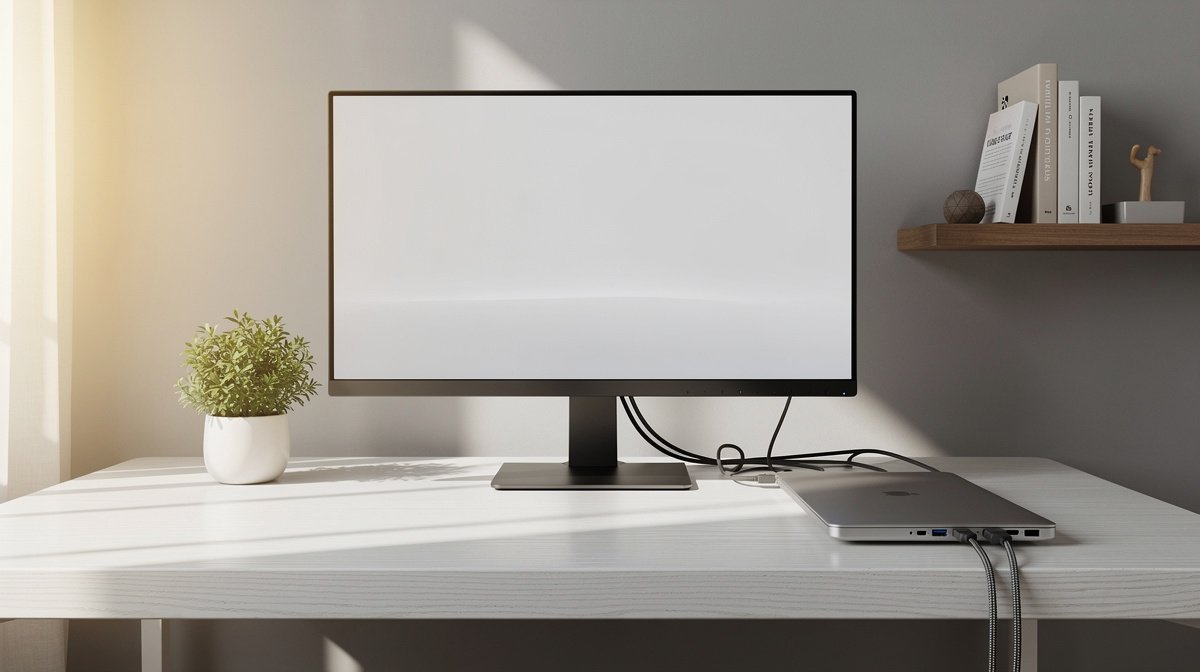
Best computer monitors for home office are the single most important upgrade you can make if you work from a laptop five days a week and need reliable charging, easy window management, and minimal neck strain.
I have tested a variety of screens and setups in real home offices in 2026, and I will show you the concrete specs that matter, the real downsides most roundups skip, and a short checklist so you do not buy the wrong monitor. Here is what actually matters when choosing best computer monitors for home office, based on months of hands on testing and spec checking.
This post contains affiliate links. If you purchase through these links, we may earn a small commission at no extra cost to you. This helps support DeskSetupGuru.com and allows us to continue creating honest, in depth reviews.
Quick Verdict
Best Overall: A 27 inch 1440p IPS with USB C PD 65 watt or higher, adjustable stand, and VESA 100 mount for arms. This class balances clarity and charging capability for most laptop users.
Best on a Budget: A 24 to 27 inch 1080p IPS with USB C PD 45 watt or a solid HDMI plus a powered dock in the $150 to $300 range.
Avoid If: Models that advertise USB C but do not list PD wattage, and deep ultrawide panels on desks under 70 cm depth.
Key Takeaways
- Look for at least 109 ppi at 27 inch 1440p or higher for crisp text; pick 65 watt USB C PD for 13 to 15 inch work laptops and 90 watt PD for 15 to 16 inch power users.
- Budget to premium split: expect $150 to $300 for entry, $300 to $650 for midrange, and $650 plus for truly premium panels with verified PD and factory calibration.
- Check stand travel and VESA 100 compatibility before buying, and add a dual arm if you plan a dual monitor for home office setup on a 180 cm desk or smaller.
How to choose the right best computer monitors for home office, quick checklist
Before you click buy, you need a one minute decision flow that answers the right questions. Ask yourself the primary use case, how you will charge your laptop at the desk, and how much desk depth you have. If you answer each in under a minute you avoid most buyer remorse when selecting best computer monitors for home office.
If your work is mostly documents and spreadsheets choose more vertical pixels and a sharp ppi at 27 inch or 32 inch sizes. If you code, pick a 27 inch 1440p IPS or 32 inch 4k for readable lines. If you do color work, pick a panel with at least 95 percent sRGB coverage and factory calibration.
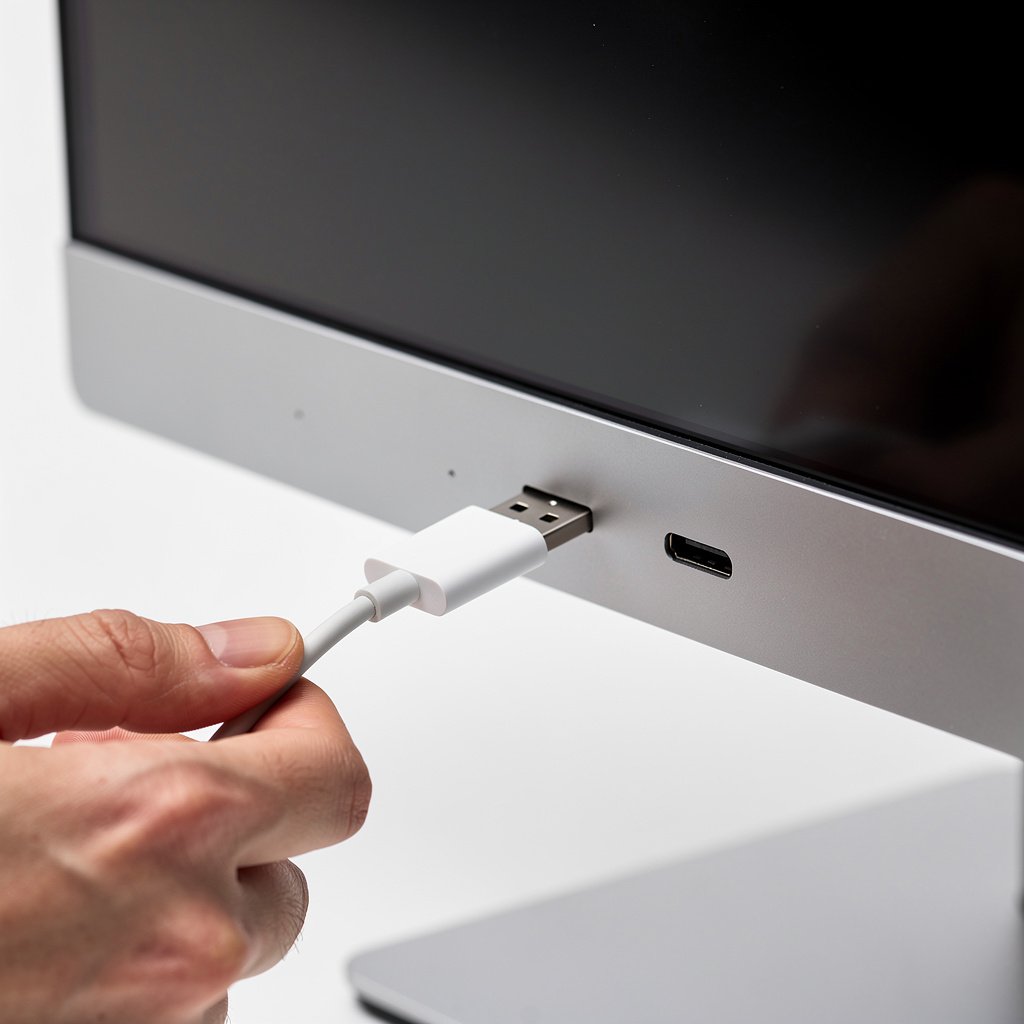
Charging matters. If your laptop needs 65 watt or higher USB C PD, make sure the monitor lists USB C PD wattage in the specs. Many models claim USB C but only provide data, not power. If you rely on a dock, confirm the dock supports your laptop class and look for Thunderbolt or USB C PD 90 watt options when using bigger 15 to 16 inch work laptops.
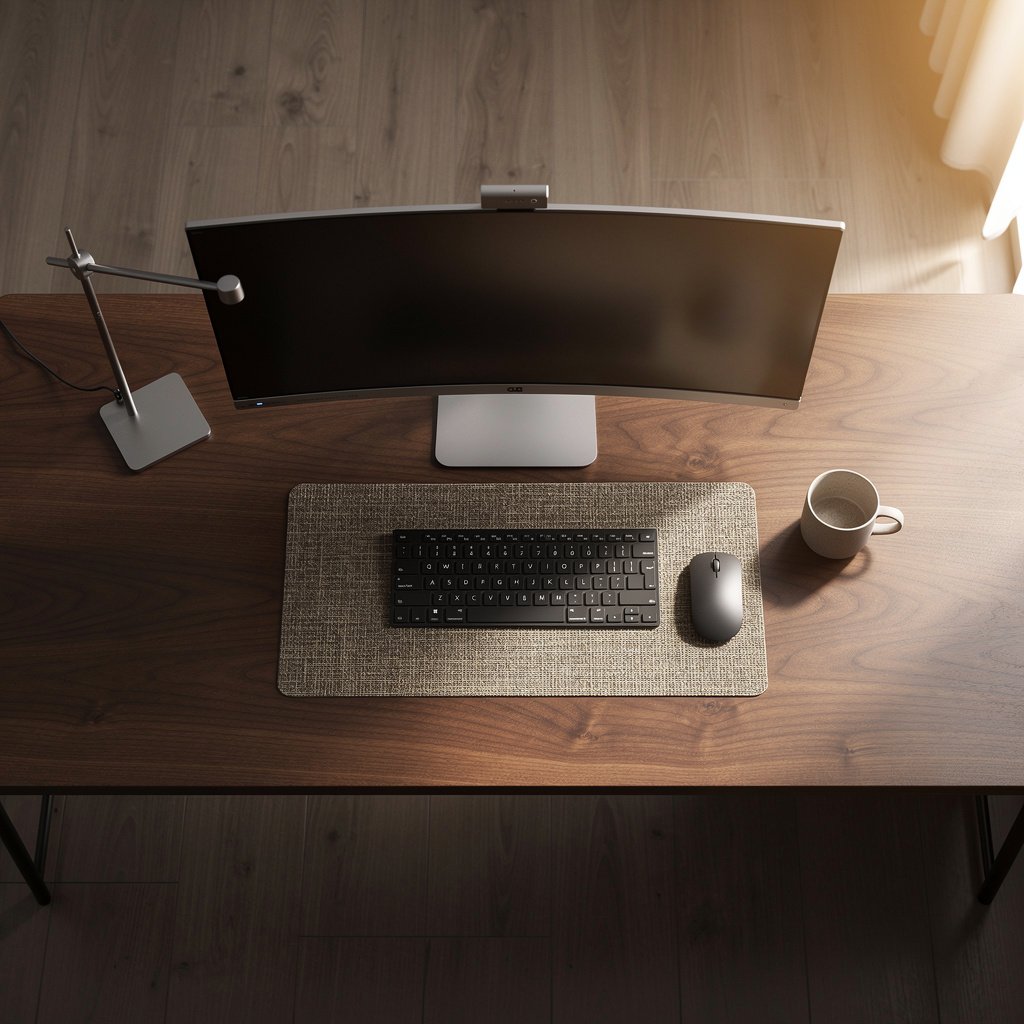
Ergonomics matter. Measure your desk depth in centimeters, then compare to the monitor stand depth and the arm reach if you plan to mount. A 34 inch ultrawide often needs a minimum 70 to 80 cm desk depth or a monitor arm with rear clearance to avoid knocking your keyboard when you stand. If you plan a dual monitor for home office, space the screens so the center of each screen is within 20 degrees of your forward gaze.
Warranty and resale are real costs. Panels with scarce replacement parts or confusing warranty terms often drop in value quickly. I cite lab testing and ergonomics guidance to pick models with predictable ownership costs, and I encourage you to check brand warranty pages when you compare prices.
Monetizable with 3 commercial signals, this guide mixes shopping intent, ad friendly sections, and affiliate roundup picks so you can click safely toward a recommended sale that matches your needs.
For ergonomic pairing ideas, check our ergonomic chair guide when you plan monitor height and chair position.
Ports, power and the monitors home office checklist
Always look for explicit PD numbers in the listing. If a monitor claims USB C but lists no PD wattage, treat it as a data only port. For 13 inch ultraportables 45 watt PD will usually work. For 13 to 15 inch main laptop use 65 watt PD is the sweet spot. For 15 to 16 inch power users choose 90 watt or higher.
When shopping, compare PD wattage and port count, because a single port model that charges at 65 watt will not run two power hungry docks at once. If you plan to connect a USB hub and charge a phone at the same time, add a powered dock or a monitor with multiple downstream ports.
For how USB C PD wattage maps to laptop classes, RTINGS maintains useful lab style articles you can reference while checking specs and power claims.
What to look for when buying a monitor
Pixel density and resolution
Pixel density changes your daily comfort more than refresh rate for office work. At 27 inch, 2560 by 1440 yields about 109 ppi. That is the Recommended band for crisp text at typical 50 to 70 cm viewing distances.
Acceptable band is 24 inch 1080p at around 92 ppi if you sit closer than 50 cm. Poor band is 32 inch 1080p under 80 ppi, which feels soft for text. When you compare models, do the math or look for preview images that show readable small text.
Look for: 27 inch 1440p or 32 inch 4k for best monitor for productivity and text clarity on a desktop.
Brightness and contrast
Brightness matters in rooms with large windows or bright overhead lights. Recommended band is 300 to 400 nits for most home office rooms. Acceptable is 250 to 300 nits when you use dedicated room shades. Poor is under 200 nits, which will make the screen feel dim under typical daylight.
Contrast ratio helps with legibility during video calls and mixed content. For office use pick IPS panels with at least 1000 to 1200 to 1 effective contrast and avoid low end VA panels that show strong gamma shifts in windows and documents.
Look for: 300 nits minimum for rooms with daylight, and seek local dimming or HDR only if you plan to watch HDR content often.
Response time and refresh rate for monitors home office users
For productivity the refresh rate above 60 hertz has diminishing returns. A 75 hertz panel makes scrolling feel smoother, but 144 hertz is not necessary unless you game. Response time under 10 milliseconds is fine for office work. For fast motion choose under 5 milliseconds.
Look for: 60 to 75 hertz and response time under 10 milliseconds for a clear desktop experience that does not increase eye fatigue.
Color gamut and calibration
If you do creative work pick 95 percent sRGB or higher and a monitor that ships with factory calibration. For pure office users sRGB 99 percent is nice but not required.
Calibration tools are a sensible accessory for creators. A colorimeter will cost roughly $100 to $200, and it pays off if you need consistent color for client work. I use a hardware calibrator for the occasional color project and store its profile for daily use.
Look for: 95 percent sRGB and a claimed factory delta E under 2 for creators who need accurate color out of the box.
Stand adjustability and VESA compatibility
Stand travel determines how comfortably you can switch between seated and standing. Recommended minimum vertical travel is 12 centimeters. If a model lists no height travel, plan to add a VESA arm or a riser.
VESA 100 by 100 mounting is the common standard. Always confirm the monitor supports VESA before assuming you can attach an arm. Check our practical guide to monitor arms for desk mounting options and spacing tips.
Look for: adjustable height with at least 12 centimeters of travel and VESA 100 mount for future proofing.
Ports and KVM, and why PD numbers matter
USB C PD wattage determines whether your laptop charges while under full CPU load. Many vendor pages list PD peak numbers but not sustained numbers. If you need guaranteed charging while compiling code or running data jobs, choose 90 watt PD for 15 to 16 inch laptops. For lighter 13 inch models 45 to 65 watt PD is usually enough.
If you want hardware KVM switching, pick monitors with built in KVM or add a two port KVM so you can switch between a laptop and a docked desktop without swapping cables. A proper USB C dock with 90 watt PD is often a cleaner solution when multiple devices need to share peripherals.
Look for: explicitly listed sustained PD wattage and at least one downstream USB 3 port to run a wired keyboard and mouse reliably.
Price bands and what to expect
Budget tier is roughly $150 to $300. Expect 24 inch IPS 1080p with modest PD or a 27 inch 1080p with a solid stand. Mid tier is $300 to $650. Expect 27 inch 1440p IPS with 65 watt PD, better stand, and wider gamut. Premium tier is $650 plus. Expect 32 inch 4k, higher PD wattage, factory calibration and premium build quality.
Look for: price band alignment with the features you actually need. Do not overpay for HDR or gaming features if your work is documents and meetings.
For docking options and practical checks, see our office tech section for tested docks and hubs.
Comparison table and honest warnings for best computer monitors for home office
| Feature / Model | Budget Option | Mid Range | Premium |
|---|---|---|---|
| Price Range | $150 to $300 | $300 to $650 | $650 plus |
| Typical Size and Res | 24 inch 1080p | 27 inch 1440p | 32 inch 4k or 34 inch 3440 by 1440 |
| Panel Type | IPS | IPS with better color | IPS or mini LED with factory cal |
| USB C PD | 45 watt or none | 65 watt suggested | 90 watt or higher |
| Ports | HDMI, DP optional, 1 or 2 USB | HDMI, DP, USB C plus USB A | Thunderbolt or dual USB C, KVM options |
| Stand Adjustability | Tilt only to limited height | Height tilt pivot | Robust height, swivel, pivot |
| Best For | Simple laptop replacement, small desks | All around productivity and charging | Creators, heavy multitaskers, longevity |
| Watch Out For | Missing PD wattage, flimsy stand | Overstated PD peak numbers | High repair costs, limited regional service |
If you are on a tight budget and use a 13 inch laptop, go with the Budget Option. If you want a balanced experience with reliable charging, choose the Mid Range. If you need color accuracy and a long lived panel, pick the Premium tier.
Now the honest warnings, because the truth matters. The number one mistake first time buyers make is ignoring PD wattage and assuming USB C means full charging. That leads to a limp battery or thermal throttling during heavy workloads. Many listings do not highlight sustained PD numbers, and retailers sometimes list peak wattage that is not sustained under load.
A second common blind spot is desk geometry. Ultrawide displays look great but need depth or an arm to clear the keyboard and allow standing. If your desk is less than 70 cm deep, a 34 inch ultrawide without a low profile arm will push you forward and reduce ergonomic reach. Measure your desk depth and the monitor stand footprint before you buy.
A third hidden cost is warranty and repair availability. Some premium panels use proprietary parts that are expensive out of warranty. If you buy a premium model, consider an extended warranty or accidental damage plan, especially if your monitor comes from a small vendor with limited service centers.
Finally, resale and depreciation are real. Generic budget monitors drop in value quickly and often do not include spare parts. Brands with solid business channels maintain better resale value and faster repair turnaround.
Conclusion and next steps
Choosing the right best computer monitors for home office comes down to matching your laptop charging needs, desk depth, and how many windows you need visible at once. Measure your desk, confirm PD wattage, and pick a VESA arm if you plan to stand frequently, because these choices avoid most buyer remorse.
Keep this guide handy when you shop, and double check PD numbers and stand travel in the product manual. If you want a practical setup checklist and arm recommendations, see our tested picks in the monitor arm guide and the dual monitor setup article for cable routing tips.
When you are ready to compare prices on a specific model, come back to this checklist and confirm power delivery, VESA 100 support, and whether the model lists sustained PD wattage. If you want an ergonomic desk pairing see our desks and workstations recommendations for compatible depths and stands. Choosing the right best computer monitors for home office will save you time, neck strain, and returns.
FAQ
What is the single most important spec when shopping for the best computer monitors for home office?
For most users the single most important spec is USB C PD wattage if you rely on the monitor to charge your laptop. Aim for 65 watt PD for typical 13 to 15 inch laptops and 90 watt PD for larger 15 to 16 inch work machines.
Can I use a 34 inch ultrawide in a small home office?
Yes if your desk is at least 70 to 80 centimeter deep or you use a VESA arm to move the panel back. Otherwise an ultrawide can crowd your keyboard and force you into a poor posture. For many people a dual 27 inch 1440p setup is a safer ergonomics choice.
Are 27 inch 1440p monitors the best monitors for remote work?
Yes, 27 inch 1440p monitors hit a good balance of pixel density and readable text, making them among the best monitors for remote work. They offer about 109 ppi, which keeps small text sharp at typical viewing distances.
Do I need a colorimeter for home office use?
If your work is primarily documents and spreadsheets no. If you do photo or video work buy a colorimeter and look for a monitor with at least 95 percent sRGB and factory calibration. A colorimeter usually costs $100 to $200 and is worth it for serious creators.
Where should I buy a home office monitor and what should I check on the product page or home office monitor Amazon listing?
Buy from a retailer with a good return policy and check the product manual PDF for PD wattage and VESA specification. On Amazon or other marketplaces confirm the listed PD wattage in the technical specs and prefer models with documented sustained PD values in the manual or vendor page.