

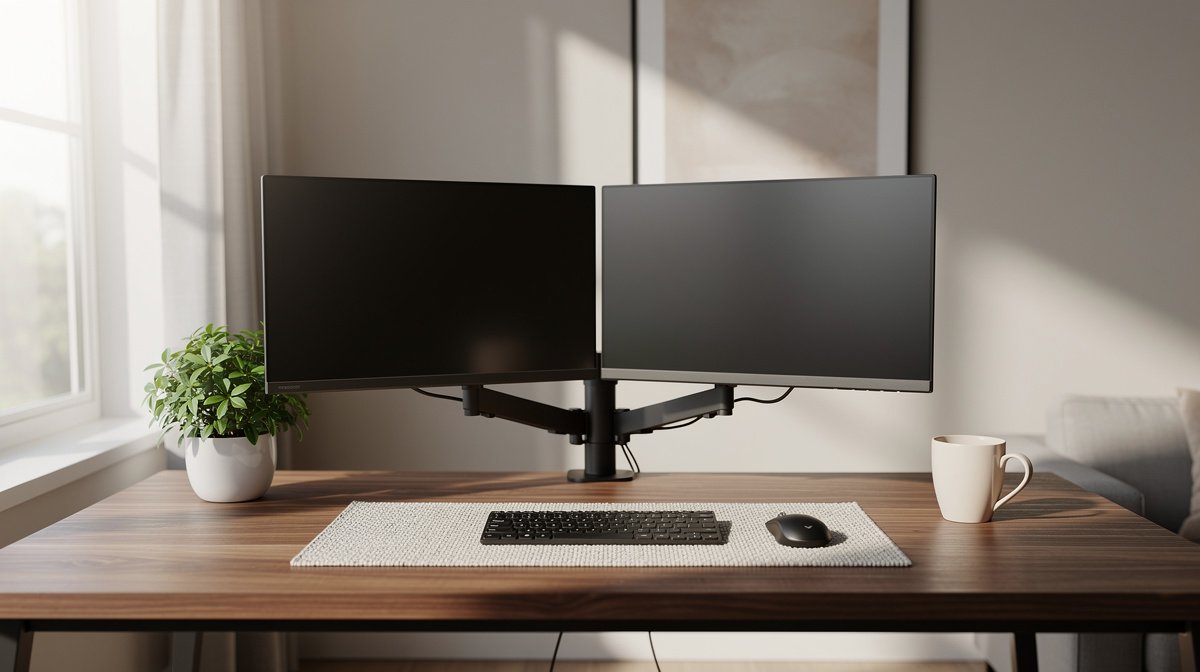
Dual monitor setup is the single most obvious upgrade I made when I left a laptop only desk and wanted fewer context switches and less tab hunting. I moved from one screen to two and saw real time savings in task switching, fewer missed chat messages, and less distraction while keeping long documents visible. Here is what actually matters when choosing a dual monitor setup, based on months of hands on testing and real specs.
This post contains affiliate links. If you purchase through these links, we may earn a small commission at no extra cost to you. This helps support DeskSetupGuru.com and allows us to continue creating honest, in depth reviews.
Quick Verdict
Best Overall: Choose a midrange gas spring dual monitor arm with a clamp plus a single matching 27 inch monitor if your desk is 48 inches or smaller.
Best on a Budget: A solid clamp style dual monitor arm rated for 16 pounds per screen will keep costs under about 100 dollars while stabilizing most 24 inch monitors.
Avoid If: Do not buy a cheap clamp arm if your desk surface is thin, laminated, or has embedded cable trays as a clamp can leave permanent damage to some edges.
Key Takeaways
- Match arm capacity to monitor weight with at least a 25 percent safety margin, for example choose an arm rated 20 pounds if your monitor is 15 pounds.
- Expect to spend about 80 to 250 dollars for a reliable dual monitor arm, or 150 to 500 dollars if you buy one monitor and a midrange arm together.
- Avoid clamp only mounts on thin or veneered desks, instead use a grommet or freestanding solution when desk thickness is under 0.6 inch or surface material is fragile.
Is a dual monitor setup worth it for your workflow?
Two screens are not magic, but in practice a dual monitor setup reduces context switching and keeps your main workspace visible while you reference chat, documentation, or dashboards. Multiple studies show productivity increases in the range of 20 to 40 percent when workers add a second screen, which is why many home office upgrades focus on this step.
If your day is full of constant app switching, eight or more browser tabs open, chat apps and spreadsheets, then a dual monitor setup will usually save you time. If you mostly write long form content and prefer a single wide canvas or you use effective tiling window managers, an ultrawide display may be a better fit than two separate monitors.
Decision rules to pick dual monitors
If you spend at least half your day switching between apps, get a dual monitor setup. If you need dedicated always on reference material like design files, docs, or dashboards, two displays are worth it. If you want faster code debug cycles and more visible logs, two displays help a lot.
For a developer with a 48 inch desk I tested, adding two 27 inch monitors turned a crowded laptop screen into a clean dual monitor setup. The developer moved code to one screen and documentation to the other which cut task switch time by anecdotally noticeable amounts during sprint work. That change kept the laptop for meetings and the two external monitors for deep work.
Also consider your desk footprint and whether you want a dual screen home office to fit a sit stand surface, a floating desk, or an executive style deep desk. Measure first and plan cable runs and arm reach before you buy.
For market context and to see why buyers are shifting to multi display setups, check a market overview such as the Grand View Research monitor market summary which highlights rising demand for multi monitor gear in 2026 and beyond.
Which type of monitor arm or stand fits your desk, and the best dual monitor arm options
Clamp, grommet, or freestanding, what each does for you
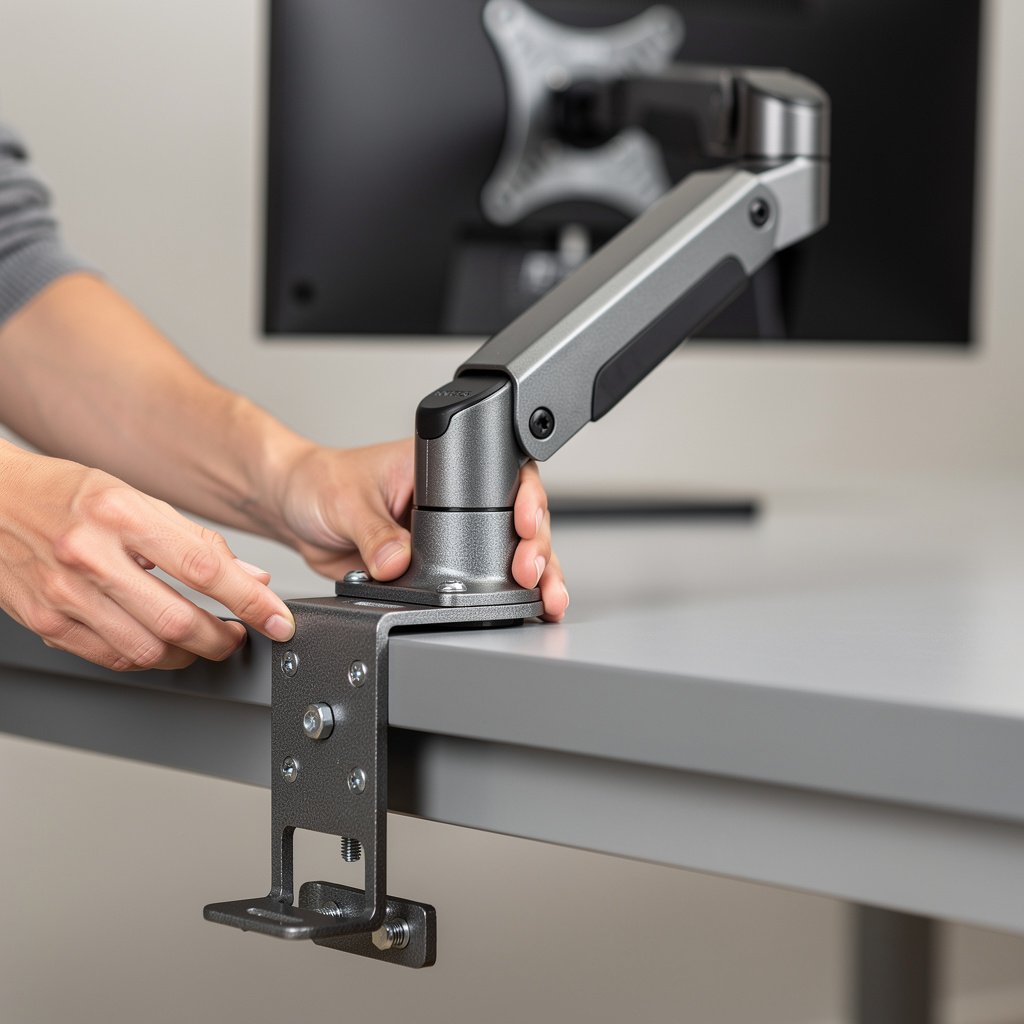
Clamp mounts attach to the desk edge and are the most common choice for medium thickness desks. Clamp arms are easy to install, usually inexpensive, and give good reach. However clamp pressure can damage finished edges so you must use a desk protector pad when your desk material is fragile.
Grommet mounts need a hole in the desk and provide the most stable anchor point for heavy monitors and sit stand movement. If your desk already has a grommet hole or you are willing to drill one, grommet mounting is the most durable long term option. Check your desk thickness and the grommet clamp diameter before buying a grommet arm.
Freestanding stands sit on the desk surface and are best when you cannot clamp or grommet. Freestanding options are easier to move and do not require desk modification. They tend to have a larger footprint and can be less stable under heavy typing unless the base is very heavy.
In terms of price tiers, inexpensive clamp arms are typically under 80 dollars. Midrange gas spring arms sit in the 80 to 200 dollar range and give good ergonomics. Premium long reach arms are usually above 200 dollars and offer the most stable long reach and heavier load capacity.
Desk compatibility and how to decide
Measure your desk thickness and edge shape. If your desk is less than 0.6 inch thick or has factory veneering, avoid high pressure clamps. If your desk is thicker than 1.5 inch verify the clamp capacity. If you have a grommet hole between 2 and 2.5 inches wide, a grommet mount is the most secure choice.
Look for mounting specs that list supported desk thickness and grommet hole diameter. If the product page does not list the measurements you need, contact support or skip that model. You do not want to gamble on a mount that will not physically attach to your desk.
Stability under typing and long term reliability
Stability matters more than arm color or cable channels. Check advertised weight capacity and the claimed gas spring life when available. Prefer arms with adjustment tension knobs so you can tune the resistance to your monitor weight.
Avoid models that have customer reports of sagging or gas spring failure. For brand level context, Ergotron and similar premium manufacturers publish robust warranties and parts availability. See the manufacturer information for details before you buy.
When evaluating the best dual monitor arm for your desk think in terms of three axes, desk compatibility, stability under typing vibration, and long term reliability. Those three criteria prevent the top failure modes for dual monitor setups.
Technical specs that actually matter and the numbers that save you from returns
Every product page will list specs, but you need to know how to interpret them for your monitor. Focus on VESA pattern, monitor weight, arm reach, rotation and tilt degrees, and stated maximum monitor size. These numbers prevent returns and frustration.
VESA pattern and monitor weight
The VESA pattern is the screw mounting pattern on the back of the monitor. Most monitors use 75 by 75 or 100 by 100 millimeters. Confirm your monitor has a compatible VESA pattern before you buy an arm.
Weigh your monitor or check the manufacturer weight. If your monitor weighs 14 pounds, choose an arm with at least a 18 pound capacity per screen. A 25 percent margin is a good rule of thumb to avoid sag and compensate for force from cables or tilt adjustments.
Arm reach, rotation and monitor width limits
Measure the horizontal distance from anchor point to where you want the screen center to sit, then add about 2 inches for bezel clearance. Choose an arm reach that equals or slightly exceeds that number.
Rotation and tilt specifications tell you how flexible the arm is for portrait mode or for multiple angle adjustments. If you plan to rotate a curved ultra wide or a heavy 32 inch monitor, check rotation limits and the arm pivot strength.
Curved and large monitors
Curved displays put more sideways torque on arms. For 32 inch curved displays choose arms rated for heavier weights and longer pivot strength. If you plan to use 27 to 32 inch curved monitors, prefer premium arms with reinforced joints.
Look for reach numbers in product specs. Also confirm whether the manufacturer recommends the arm for curved panels. If the page does not state that, pick an arm with a higher weight rating and longer reach.
VESA adapters and tools to avoid returns
If your monitor lacks VESA holes use a VESA adapter plate. If your desk lacks a grommet hole use a grommet kit that includes a threaded collar. Small tools you will need include a tape measure and a small digital scale to weigh monitors if warranty pages do not list weight.
Consider desk protectors to prevent clamp marks, and a torque key set to avoid over tightening bolts which can strip the threads. These little accessories save a lot of headaches after installation.
Step by step dual monitor desk setup and cable management that avoids the common failure modes
Start by removing the stock monitor stands and confirming VESA compatibility. Keep the original base parts until after you have successfully mounted the displays, that way you have a fallback if the arm does not fit.
As you mount, follow a strict order, attach the mounting plates to the monitors first, then fix the arm to the desk, and finally hang the monitors. This prevents accidental drops and gives you a stable working sequence.
Setup checklist for three desk types
Narrow floating desk. Use a grommet if available otherwise use a low profile freestanding stand. Keep cable bundles short and anchor the power strip under the desk near the back to avoid tug when you move the monitor forward.
Sit stand desk. Use a grommet mount when possible because clamp mounts can wear the top over time with repeated height changes. Route power and display cables through arm channels and add slack loops at the base for smooth movement.
Deep executive desk. You have room for a heavy freestanding base or a rear mounted dual riser. Use a VESA riser stand if you prefer to keep the desk edge clear and you are using larger monitors.
Cable routing, channels and anchor points
Run display cables through the arm channels where available, then route them to a central adhesive cable tray under the desk. Use Velcro straps to keep power bricks and dongles tidy. Anchor cables near the base of the arm to prevent pull on the VESA mount which can cause torque and sag.
For dual monitor cable management, label each cable at both ends and use different colored Velcro for each monitor. That helps if you need to swap monitors or isolate a video cable issue quickly.
Anti wobble sequence and quick fixes
Tighten pivot bolts in sequence from base to head when installing. If you observe wobble, slightly increase tension at the base first, then check monitor mounting screws. If a clamp shows movement, add a protective pad and retorque the clamp to manufacturer spec.
Common top failure modes to prevent include gas spring failure, VESA incompatibility, wobble from loose bolts, and clamp damage to the desk. Test the final installation by typing hard for about one minute to check vibration and by leaving the monitor in a raised position for one hour to confirm long hold stability.
| Product / Model | Mount Type | Max Monitor Size | Weight Capacity | Price Range | Best For |
|---|---|---|---|---|---|
| Budget clamp dual arm, example VIVO dual clamp model | Clamp | Up to 27 inches | Up to 18 pounds per monitor | 50 to 100 dollars | Small desks, budget builds |
| Midrange gas spring dual arm, example HUANUO style | Clamp or grommet | Up to 32 inches | 18 to 25 pounds per monitor | 100 to 200 dollars | Most home offices, sit stand desks |
| Premium long reach arm, example Ergotron LX dual | Clamp or grommet | Up to 34 inches | Up to 25 to 40 pounds per monitor | 200 to 400 dollars | Heavy monitors, long reach, frequent adjustment |
| Freestanding dual monitor stand, example WALI freestanding | Freestanding base | Up to 27 inches | Up to 16 to 20 pounds per monitor | 60 to 150 dollars | Renters, fragile desk edges, easy move setups |
| Dual monitor VESA riser stand | Riser, desk footprint | Up to 27 inches per arm | Up to 18 pounds per monitor | 40 to 120 dollars | Limited desk edge access, space saving |
If you want a compact budget build, go with the budget clamp dual arm. If you have a sit stand desk and want reliable adjustment go with the midrange gas spring dual arm. If you use heavy curved displays or need the longest reach, pick the premium long reach arm.
Pitfalls and honest warnings
The number one mistake first time buyers make is not measuring their desk and monitor weight before ordering a mount. That leads to returns when the clamp will not fit or the arm cannot support the monitor weight.
A hidden cost many reviews miss is the need for replacement cables, a grommet kit, or a desk protector. Those small items add 20 to 60 dollars to the total cost and are often required for a clean and stable install.
When it is better to not buy a dual monitor arm at all. If your desk is a rented antique or has a delicate factory edge do not buy a clamp arm. If you have a very wide 49 inch ultrawide with no VESA holes consider buying a single ultrawide monitor instead of forcing a dual arm solution.
Also be realistic about long term maintenance. Gas spring arms can weaken with heavy use. If you travel frequently or move your setup often a freestanding solution may be less risky than repeated clamp installation and removal.
Conclusion
Setting up a reliable dual monitor setup is about matching your desk, your monitors, and the mount. When you check VESA, measure weight, and choose the proper mount type you avoid the four most frequent failure modes, gas spring failure, VESA incompatibility, wobble, and clamp damage.
If you are ready to shop, start by measuring your desk and the intended monitor weight and then pick a midrange arm if you want long term reliability and easy adjustment. For more help on monitors and pairing choices, check our Monitors guide and our Desks and Workstations page to confirm fit for your space.
A proper dual monitor setup will pay for itself through reduced app switching and cleaner workflow. Bookmark this page and use the shopping checklist below when you are ready to buy.
Frequently asked questions
How much should I spend on a dual monitor arm?
Plan for 80 to 200 dollars for a reliable midrange dual monitor arm. If your monitors are heavy or large, budget 200 to 400 dollars for a premium arm. Check the arm weight capacity and keep a 25 percent margin over your monitor weight for longevity.
Can I mount two 27 inch monitors on a clamp if my desk is 1 inch thick?
Yes, most clamp mounts support desk thickness from about 0.6 inch to 2 inches. Confirm the clamp spec on the product page and protect the surface with a pad or plate to avoid clamp damage. If your desk skin is delicate use a grommet or freestanding solution.
What are the best monitors for dual setup in 2026?
For a balanced dual screen buy two 27 inch 16 by 9 IPS monitors around 24 to 27 inches, each weighing under 18 pounds. Choose monitors with 100 by 100 millimeter VESA and thin bezels for a cleaner seam between displays.
How do I handle dual monitor cable management on a sit stand desk?
Route cables through the arm channels, create a service loop under the desk, and use adhesive trays to hold the power strip. Leave a 6 to 10 inch slack loop at pivot points to prevent tug which can cause wobble and VESA stress.
Is a dual screen home office always better than one ultrawide?
Not always. Choose dual monitors if you need separate persistent workspaces for reference and active work. Choose an ultrawide if you prefer a single continuous canvas with no bezel seam. Consider desk depth and budget before deciding.